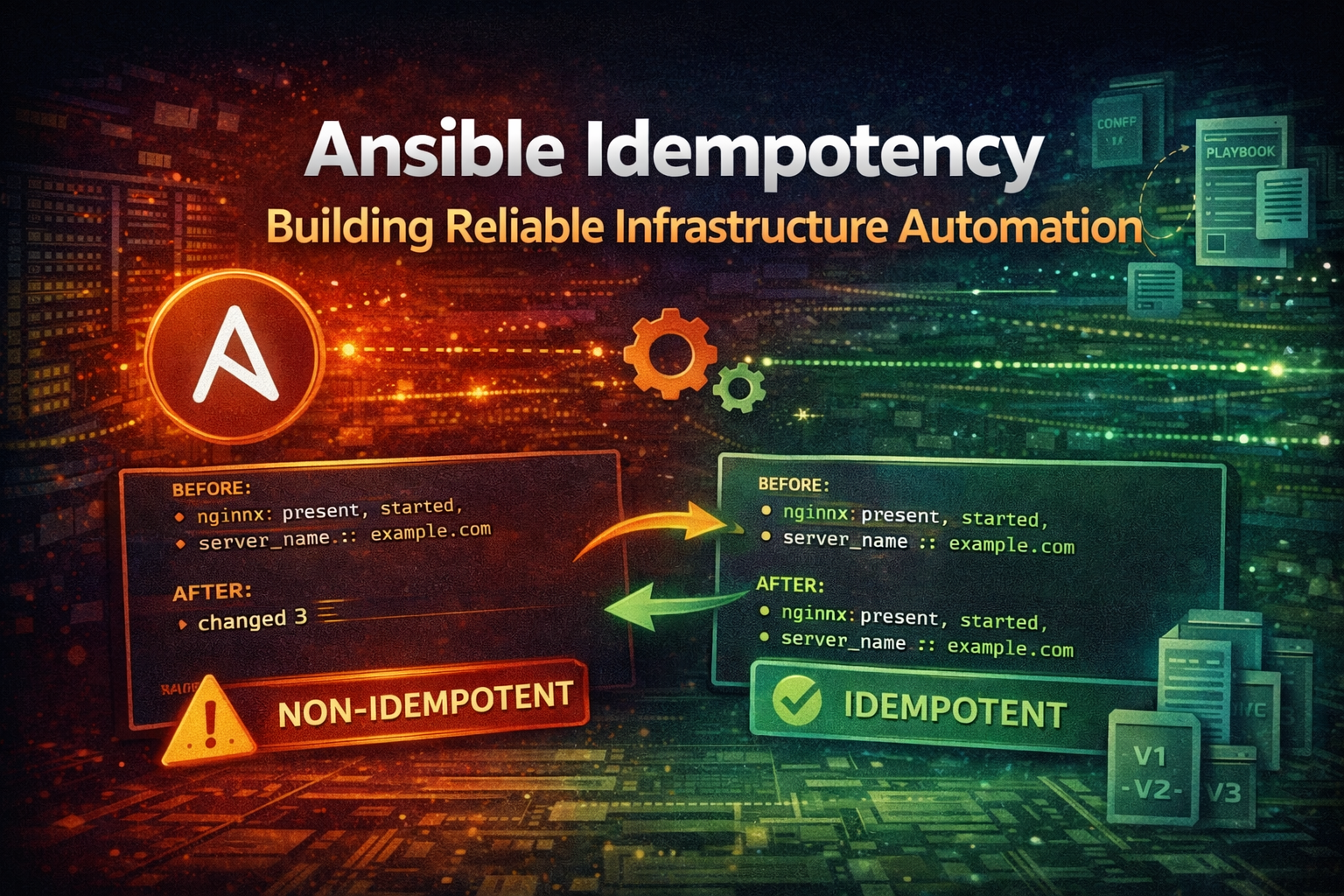
Master Ansible idempotency to write playbooks that safely run multiple times without side effects. Learn how to build production-grade automation that prevents configuration drift and infrastructure chaos.

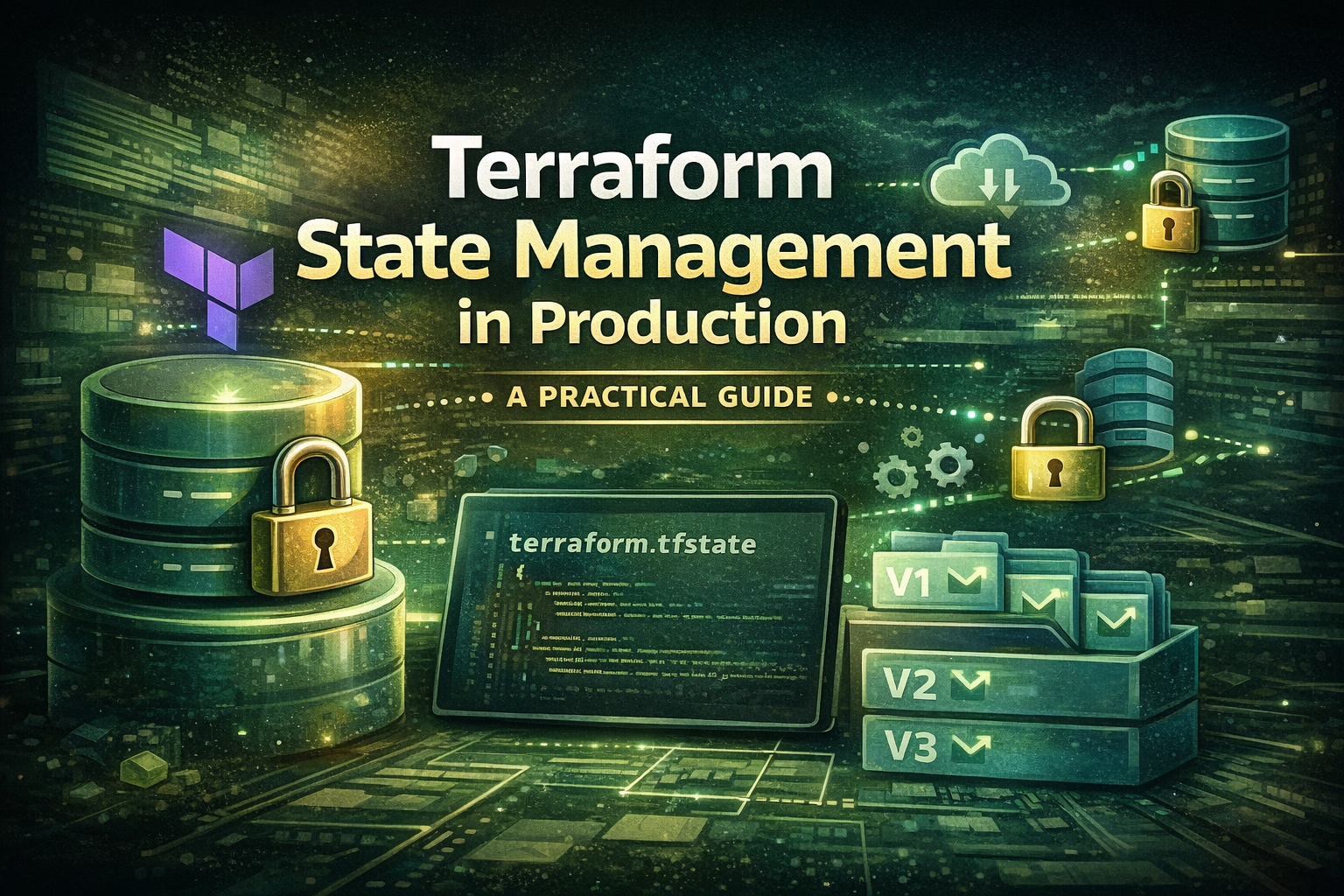
Master Terraform state management with remote backends, locking, and versioning. Learn production-grade strategies to prevent infrastructure disasters and keep your IaC reliable at scale.
Terraform state is the source of truth for your infrastructure. It's also the most dangerous file you'll manage. Lose it, corrupt it, or let multiple people edit it simultaneously, and you're looking at infrastructure chaos—resources getting deleted unexpectedly, duplicate resources being created, or worse, your entire production environment becoming unmanageable.
Most teams start with local state files during development. That works fine until you hit production. Then reality hits: you need multiple people managing infrastructure, you need to prevent concurrent modifications, you need audit trails, and you need your state to survive a laptop crash.
This guide covers production-grade state management strategies that prevent disasters before they happen.
Terraform state is a JSON file that maps your infrastructure code to real resources in your cloud provider. When you run terraform apply, Terraform:
Without state, Terraform has no way to know what it previously created. It can't track resource IDs, it can't detect drift, and it can't safely update or destroy resources.
Local state files live on your machine. This creates several problems:
Collaboration breaks down. When two engineers run terraform apply from different machines, they're working with different state files. The second person's changes might overwrite the first person's, or worse, both might try to modify the same resource simultaneously.
State gets lost. Your laptop dies, your hard drive fails, or you accidentally delete the file. Now you have no record of what Terraform created, and you can't safely manage those resources anymore.
No audit trail. You can't see who changed what, when, or why. This violates compliance requirements and makes debugging infrastructure issues nearly impossible.
Concurrent modifications cause corruption. If two people run Terraform at the same time, the state file can become corrupted or inconsistent.
A remote backend stores your state file on a centralized server instead of your local machine. Terraform reads and writes state through an API, which means:
AWS S3 with DynamoDB is the most common choice for AWS-based infrastructure. S3 stores the state file, and DynamoDB provides state locking.
Terraform Cloud (managed by HashiCorp) handles all the complexity for you. It's a SaaS solution with built-in state management, locking, and team collaboration features.
Azure Storage Account works well if you're in the Azure ecosystem.
Google Cloud Storage is the natural choice for GCP deployments.
Consul is useful if you're already running Consul for service discovery.
For this guide, we'll focus on S3 + DynamoDB since it's widely used and gives you full control.
You need to create the S3 bucket and DynamoDB table before Terraform can use them. This is a chicken-and-egg problem: you need infrastructure to store your infrastructure code's state.
The solution is to create these resources manually or with a separate Terraform configuration that uses local state (just this once).
aws s3api create-bucket \
  --bucket my-terraform-state \
  --region us-east-1 \
--create-bucket-configuration LocationConstraint=us-east-1Once the backend infrastructure exists, configure Terraform to use it:
terraform {
backend "s3" {
bucket = "my-terraform-state"
key = "prod/terraform.tfstate"
region = "us-east-1"
dynamodb_table = "terraform-locks"
encrypt = true
}
}The key parameter determines where your state file lives within the bucket. Using a path like prod/terraform.tfstate lets you organize multiple environments in one bucket.
When you run terraform init with a new backend configuration, Terraform asks if you want to migrate your existing state:
terraform initDo you want to copy existing state to the new backend?Answer yes, and Terraform automatically uploads your local state to S3 and updates your configuration to use the remote backend.
Important
After migration, delete your local terraform.tfstate and terraform.tfstate.backup files. They're no longer needed and pose a security risk if they contain sensitive data.
State locking prevents two Terraform operations from running simultaneously. Without it, this scenario happens:
terraform apply and starts modifying resourcesterraform apply before A finishesWith locking, B's operation waits until A's lock is released.
When Terraform acquires a lock, it creates an entry in the DynamoDB table with:
LockID: A unique identifier for this lockInfo: Metadata about who's holding the lock and whyDigest: A hash of the state file to detect corruptionOperation: The operation being performed (apply, destroy, etc.)Who: The user running the operationVersion: The Terraform versionCreated: When the lock was acquiredIf Terraform crashes or hangs, the lock remains in DynamoDB. You can manually release it if needed:
aws dynamodb scan --table-name terraform-locksaws dynamodb delete-item \
--table-name terraform-locks \
--key '{"LockID":{"S":"my-terraform-state/prod/terraform.tfstate"}}'Warning
Only release locks manually if you're absolutely certain the operation that acquired it has stopped. Releasing an active lock can cause state corruption.
S3 can encrypt your state file automatically. Enable server-side encryption:
aws s3api put-bucket-encryption \
--bucket my-terraform-state \
--server-side-encryption-configuration '{
"Rules": [{
"ApplyServerSideEncryptionByDefault": {
"SSEAlgorithm": "AES256"
}
}]
}'Or use KMS for more control:
aws s3api put-bucket-encryption \
--bucket my-terraform-state \
--server-side-encryption-configuration '{
"Rules": [{
"ApplyServerSideEncryptionByDefault": {
"SSEAlgorithm": "aws:kms",
"KMSMasterKeyID": "arn:aws:kms:us-east-1:123456789012:key/12345678-1234-1234-1234-123456789012"
}
}]
}'Always use HTTPS when accessing S3. Terraform does this by default, but verify your AWS CLI configuration:
aws s3api get-bucket-policy --bucket my-terraform-stateAdd a bucket policy to deny unencrypted uploads:
{
"Version": "2012-10-17",
"Statement": [
{
"Sid": "DenyUnencryptedObjectUploads",
"Effect": "Deny",
"Principal": "*",
"Action": "s3:PutObject",
"Resource": "arn:aws:s3:::my-terraform-state/*",
"Condition": {
"StringNotEquals": {
"s3:x-amz-server-side-encryption": "AES256"
}
}
}
]
}Restrict who can read and modify your state file. Use IAM policies:
resource "aws_iam_policy" "terraform_state" {
name = "terraform-state-access"
policy = jsonencode({
Version = "2012-10-17"
Statement = [
{
Effect = "Allow"
Action = [
"s3:ListBucket",
"s3:GetBucketVersioning"
]
Resource = "arn:aws:s3:::my-terraform-state"
},
{
Effect = "Allow"
Action = [
"s3:GetObject",
"s3:PutObject",
"s3:DeleteObject"
]
Resource = "arn:aws:s3:::my-terraform-state/*"
},
{
Effect = "Allow"
Action = [
"dynamodb:DescribeTable",
"dynamodb:GetItem",
"dynamodb:PutItem",
"dynamodb:DeleteItem"
]
Resource = "arn:aws:dynamodb:us-east-1:123456789012:table/terraform-locks"
}
]
})
}Attach this policy only to users and roles that need to manage infrastructure.
S3 versioning keeps previous versions of your state file. If something goes wrong, you can restore an earlier version:
aws s3api put-bucket-versioning \
  --bucket my-terraform-state \
--versioning-configuration Status=EnabledList all versions of your state file:
aws s3api list-object-versions \
--bucket my-terraform-state \
--prefix prod/terraform.tfstateIf your state file becomes corrupted, restore a previous version:
aws s3api get-object \
--bucket my-terraform-state \
--key prod/terraform.tfstate \
--version-id abc123def456 \
terraform.tfstate.backupThen tell Terraform to use this version:
terraform state push terraform.tfstate.backupCaution
Only restore state as a last resort. Restoring an old state file can cause Terraform to think resources have been deleted when they actually still exist, leading to accidental destruction.
Organize your Terraform code to keep environments separate:
terraform/
├── environments/
│ ├── dev/
│ │ ├── main.tf
│ │ ├── variables.tf
│ │ └── backend.tf
│ ├── staging/
│ │ ├── main.tf
│ │ ├── variables.tf
│ │ └── backend.tf
│ └── prod/
│ ├── main.tf
│ ├── variables.tf
│ └── backend.tf
└── modules/
├── vpc/
├── rds/
└── eks/Each environment has its own backend configuration:
terraform {
  backend "s3" {
    bucket         = "my-terraform-state"
    key            = "prod/terraform.tfstate"
    region         = "us-east-1"
    dynamodb_table = "terraform-locks"
    encrypt        = true
  }
}terraform {
backend "s3" {
bucket = "my-terraform-state"
key = "dev/terraform.tfstate"
region = "us-east-1"
dynamodb_table = "terraform-locks"
encrypt = true
}
}Add a safety check to prevent accidentally applying prod configuration to dev:
terraform {
  required_version = ">= 1.0"
}

variable "environment" {
  type    = string
  default = "prod"
}

resource "null_resource" "environment_check" {
  lifecycle {
    precondition {
      condition     = var.environment == "prod"
      error_message = "This configuration is for production only."
    }
  }
}Never commit terraform.tfstate or terraform.tfstate.backup to version control. Add them to .gitignore:
terraform.tfstate
terraform.tfstate.*
.terraform/
.terraform.lock.hcl
State files contain sensitive data like database passwords, API keys, and private IPs. Committing them exposes this information to anyone with repository access.
Terraform state is a JSON file, and it's tempting to edit it directly. Don't. Use terraform state commands instead:
terraform state rm aws_instance.example
terraform state mv aws_instance.old aws_instance.new
terraform state show aws_instance.example
Manual edits can corrupt the state file, causing Terraform to behave unpredictably.
Backend credentials should be managed through IAM roles, not shared credentials files. If you're using AWS, use:
Never hardcode AWS credentials in your Terraform configuration or share them via Slack.
When you clone a Terraform repository, run terraform init immediately. This downloads providers and configures the backend. Skipping this step means you're working with local state, which defeats the purpose of a remote backend.
Before migrating to a new backend in production, test it in a non-critical environment first. State migrations are usually safe, but it's better to be sure.
For teams beyond a certain size, managed solutions like Terraform Cloud eliminate backend complexity. You get:
The trade-off is cost and less control, but the operational simplicity is worth it for most organizations.
Even with S3 versioning, maintain regular backups:
aws s3 cp s3://my-terraform-state/prod/terraform.tfstate \
  s3://my-terraform-backups/prod/terraform.tfstate.$(date +%Y%m%d)
Run this daily via a Lambda function or cron job.
Set up CloudWatch alerts for state file modifications:
resource "aws_cloudwatch_event_rule" "state_changes" {
  name        = "terraform-state-changes"
  description = "Alert on Terraform state file modifications"

  event_pattern = jsonencode({
    source      = ["aws.s3"]
    detail-type = ["Object-level API calls via CloudTrail"]
    detail = {
      bucket = {
        name = ["my-terraform-state"]
      }
      object = {
        key = [{
          prefix = "prod/terraform.tfstate"
        }]
      }
      eventName = ["PutObject"]
    }
  })
}Configure lock timeouts to prevent operations from hanging indefinitely:
terraform {
  backend "s3" {
    bucket         = "my-terraform-state"
    key            = "prod/terraform.tfstate"
    region         = "us-east-1"
    dynamodb_table = "terraform-locks"
    encrypt        = true
    skip_credentials_validation = false
    skip_metadata_api_check     = false
  }
}
In your CI/CD pipeline, set operation timeouts:
timeout 30m terraform apply -auto-approveDon't put all your infrastructure in one state file. Separate by:
This limits the blast radius if something goes wrong. A mistake in the dev state file won't affect production.
For personal projects or learning, local state is fine. You're the only user, and losing the state isn't catastrophic.
If you're spinning up infrastructure for testing and tearing it down immediately, local state works.
If you're managing infrastructure in an air-gapped network without internet access, you might need to use local state or a self-hosted backend.
In all other cases, especially anything touching production, use a remote backend.
Terraform state management is foundational to reliable infrastructure automation. Moving from local to remote state with S3 and DynamoDB eliminates the most common failure modes: lost state, concurrent modifications, and lack of audit trails.
The key takeaways:
Start with S3 + DynamoDB if you're on AWS. It's battle-tested, cost-effective, and gives you full control. As your team grows, evaluate managed solutions like Terraform Cloud for additional collaboration features.
The time you invest in proper state management now prevents infrastructure disasters later.