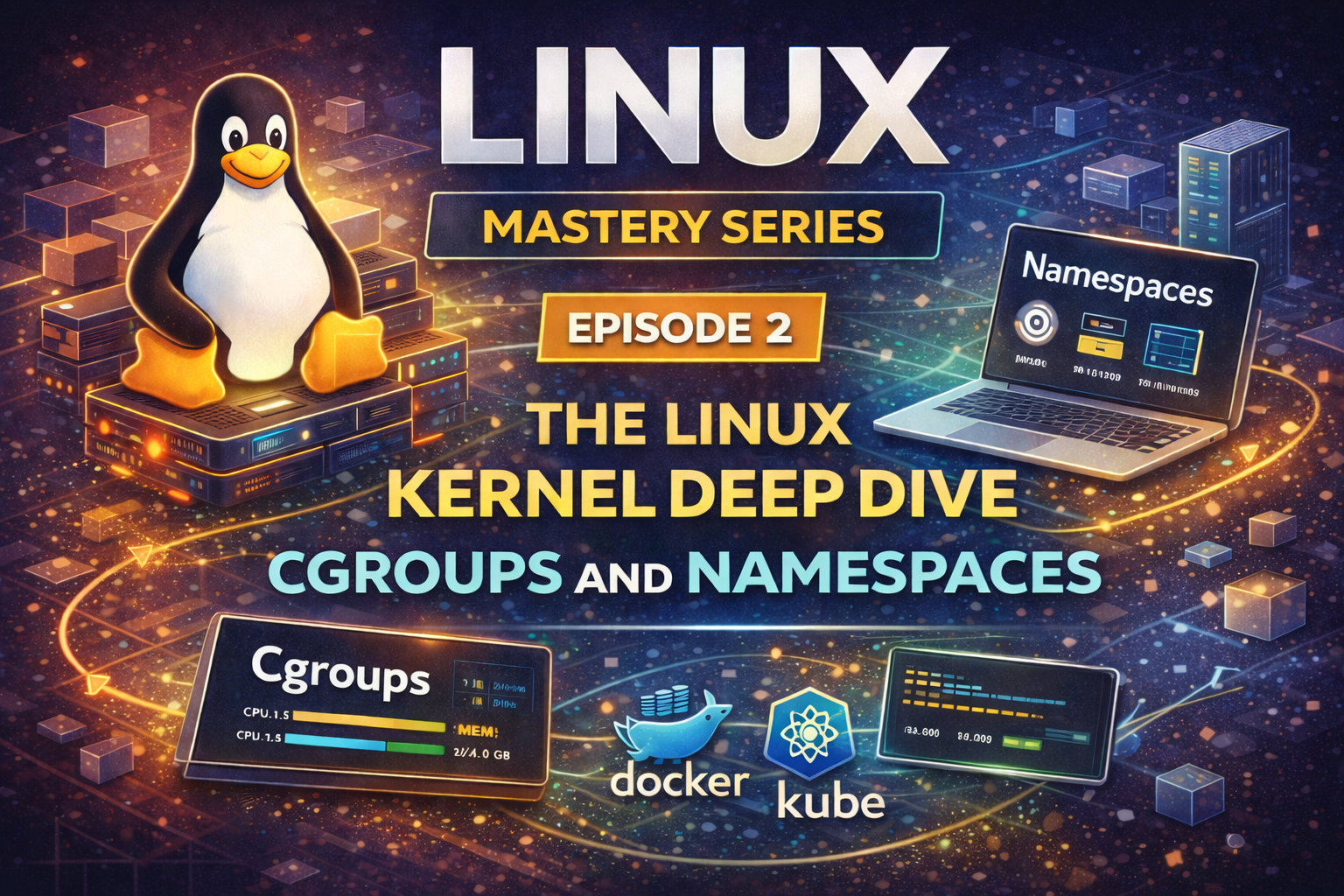
The Linux Kernel Deep Dive - Cgroups and Namespaces - Episode 2 of Linux Mastery Series
Master cgroups and namespaces, the kernel technologies that power Docker, Kubernetes, and modern containerization. Essential for DevOps and cloud engineers.
In Episode 1, we explored Linux fundamentals and history. Now we're diving deeper into the kernel—the core of Linux that makes modern containerization possible.
If you've ever wondered how Docker containers can run isolated processes on the same machine, or how Kubernetes manages thousands of containers without them interfering with each other, the answer lies in two powerful kernel technologies: namespaces and cgroups.
These aren't just academic concepts. They're the foundation of:
Docker and container technology
Kubernetes and orchestration
Cloud infrastructure
Microservices architecture
Modern DevOps practices
Understanding namespaces and cgroups is essential for anyone working with containers, cloud platforms, or infrastructure. In this episode, we'll demystify these technologies and show you how they work under the hood.
By the end, you'll understand how the kernel isolates processes, limits resources, and enables the containerized world we live in today.
The Linux kernel is the core software that manages all hardware resources and mediates access between applications and hardware. Its primary responsibilities include:
Process management: Creating, scheduling, and terminating processes
Memory management: Allocating and managing RAM, virtual memory, and paging
File system: Managing files, directories, and storage devices
Device drivers: Interfacing with hardware (network cards, disks, USB devices)
Networking: Handling network protocols and communication
Security: Enforcing permissions, user isolation, and access control
Interrupt handling: Responding to hardware and software interrupts
The kernel runs in a privileged mode called "kernel space" and protects itself from user applications.
When a user application needs to do something privileged (like reading a file or allocating memory), it makes a system call. This is the interface between user space and kernel space.
Common system calls include:
open(): Open a file
read(): Read from a file descriptor
write(): Write to a file descriptor
fork(): Create a new process
exec(): Execute a program
exit(): Terminate a process
mmap(): Map memory
socket(): Create a network socket
When a system call is made, the CPU switches from user mode to kernel mode, the kernel performs the operation, and then switches back to user mode. This context switching has a performance cost, which is why minimizing system calls is important for performance-critical code.
The kernel's process scheduler decides which process runs on the CPU at any given time. On a multi-core system, multiple processes can run simultaneously (one per core).
The scheduler uses:
Priority levels: Processes have different priorities (nice values from -20 to 19)
Time slices: Each process gets a small amount of CPU time (quantum)
Preemption: The scheduler can interrupt a running process to give CPU time to another
This is why a single-core system can run thousands of processes—they're rapidly switching between them.
The first process is init (PID 1), which is the parent of all other processes. Modern Linux systems use systemd as the init system, which manages services, dependencies, and system startup.
When a parent process terminates, its children become orphans and are adopted by init. This prevents zombie processes from accumulating.
Every process has its own virtual address space. This is a key Linux feature that provides:
Isolation: Processes can't access each other's memory
Protection: The kernel prevents unauthorized memory access
Flexibility: Programs can use more memory than physically available
Virtual addresses are mapped to physical memory by the Memory Management Unit (MMU). A process thinks it has access to a large, contiguous memory space, but the kernel maps it to fragmented physical memory.
Swap is disk space used as an extension of RAM. When physical memory is full:
Least-used pages are moved to swap (disk)
When needed again, they're moved back to RAM
This allows the system to handle memory pressure
However, swap is much slower than RAM (disk I/O is ~1000x slower). Excessive swapping causes severe performance degradation. Modern systems try to minimize swapping through better memory management and cgroup limits.
Namespaces are a kernel feature that partitions system resources so that processes can have isolated views of the system. Instead of all processes seeing the same system resources, each namespace provides a separate view.
Think of namespaces like virtual worlds. Multiple processes can exist in different namespaces, each seeing a different version of the system. A process in one namespace can't see or interact with resources in another namespace.
Namespaces are the foundation of container isolation. Docker and Kubernetes use namespaces to create isolated environments for containers.
Isolates process IDs. Each PID namespace has its own process tree with its own PID 1 (init process).
Use case: Containers see their own process tree, not the host's processes
Example: A container's init process has PID 1 inside the container, but might be PID 12345 on the host
Use case: Each container has its own network stack
Example: A container can have its own IP address, ports, and network configuration separate from the host
Cgroups (control groups) are a kernel feature that limits, prioritizes, and isolates resource usage of process groups. While namespaces provide isolation (you can't see other resources), cgroups provide resource limits (you can't use more than allowed).
Cgroups allow you to:
Limit CPU usage
Limit memory usage
Limit I/O bandwidth
Limit network bandwidth
Control device access
Prioritize resource allocation
Without cgroups, a single process could consume all CPU or memory, starving other processes. Cgroups prevent this.
When you specify resource limits in Docker or Kubernetes, you're setting cgroup limits:
bash
# Docker: Limit to 2 CPUs and 1 GB memorydocker run --cpus 2 --memory 1g myapp# Kubernetes: Set resource requests and limitsresources: requests: cpu: "500m" memory: "256Mi" limits: cpu: "1000m" memory: "512Mi"
These limits are enforced by cgroups. If a container tries to exceed its memory limit, the kernel kills the process (OOMKill). If it tries to use more CPU than allocated, it's throttled.
# List all namespaces for a processls -la /proc/1/ns/# Show namespace IDsreadlink /proc/1/ns/*# Compare namespaces between processesdiff <(readlink /proc/1/ns/*) <(readlink /proc/self/ns/*)# List all processes and their namespacesps aux | head -5
# List all namespaces for a processls -la /proc/1/ns/# Show namespace IDsreadlink /proc/1/ns/*# Compare namespaces between processesdiff <(readlink /proc/1/ns/*) <(readlink /proc/self/ns/*)# List all processes and their namespacesps aux | head -5
You can create a process in a new namespace using unshare:
# Create a new PID namespacesudo unshare --pid --fork /bin/bash# Inside the new namespace, PID 1 is bashps aux# Create a new network namespacesudo unshare --net /bin/bash# Inside, you have isolated network interfacesip link show
# Create a new PID namespacesudo unshare --pid --fork /bin/bash# Inside the new namespace, PID 1 is bashps aux# Create a new network namespacesudo unshare --net /bin/bash# Inside, you have isolated network interfacesip link show
# Run a process with CPU limit (50% of one core)systemd-run --scope -p CPUQuota=50% stress-ng --cpu 1# Run a process with memory limit (256 MB)systemd-run --scope -p MemoryLimit=256M myapp# Run with both limitssystemd-run --scope -p CPUQuota=50% -p MemoryLimit=512M myapp
# Run a process with CPU limit (50% of one core)systemd-run --scope -p CPUQuota=50% stress-ng --cpu 1# Run a process with memory limit (256 MB)systemd-run --scope -p MemoryLimit=256M myapp# Run with both limitssystemd-run --scope -p CPUQuota=50% -p MemoryLimit=512M myapp
# View cgroup v2 memory usagecat /sys/fs/cgroup/memory.currentcat /sys/fs/cgroup/memory.max# View CPU usagecat /sys/fs/cgroup/cpu.stat# Monitor in real-timewatch -n 1 'cat /sys/fs/cgroup/memory.current'# For Docker containersdocker stats
# View cgroup v1 memory usagecat /sys/fs/cgroup/memory/memory.usage_in_bytescat /sys/fs/cgroup/memory/memory.limit_in_bytes# View CPU usagecat /sys/fs/cgroup/cpuacct/cpuacct.usage# Monitor in real-timewatch -n 1 'cat /sys/fs/cgroup/memory/memory.usage_in_bytes'# For Docker containersdocker stats
Tip
The path to cgroup files differs between cgroups v1 and v2. Most modern systems use cgroups v2 at /sys/fs/cgroup/, while older systems use v1 at /sys/fs/cgroup/<resource>/.
Mistake: Assuming a process in a container can access the host's network
Why it happens: Misunderstanding how network namespaces work
How to avoid it: Remember that containers have isolated network namespaces. To access the host network, use --network host in Docker or hostNetwork: true in Kubernetes.
Understanding namespaces and cgroups is the key to mastering containerization. These concepts apply whether you're using Docker, Kubernetes, or any other container platform.
Ready for the next episode? Continue with Episode 3: Permissions, Users & Groups to master file permissions and user management, which are crucial for container security.
Master Angular from the ground up. Learn why Angular was created, understand core concepts like modules, components, services, dependency injection, directives, pipes, forms, HTTP, routing, RxJS, and change detection. Build a complete production-ready todo application covering all Angular fundamentals with best practices.
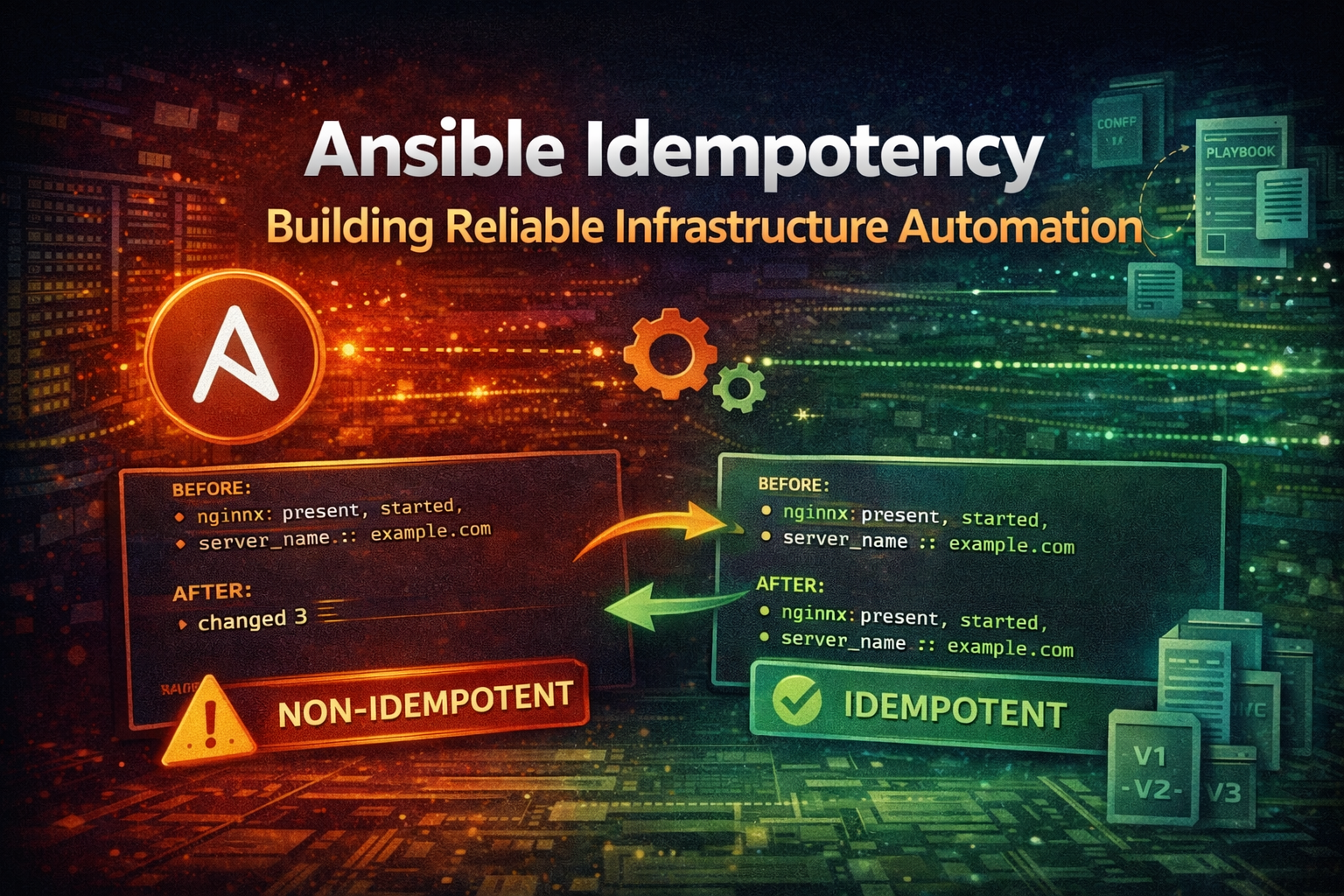
Master Ansible idempotency to write playbooks that safely run multiple times without side effects. Learn how to build production-grade automation that prevents configuration drift and infrastructure chaos.
Learn how ArgoCD implements GitOps principles to automate Kubernetes deployments. This guide covers core concepts, installation, and real-world patterns for managing applications declaratively.