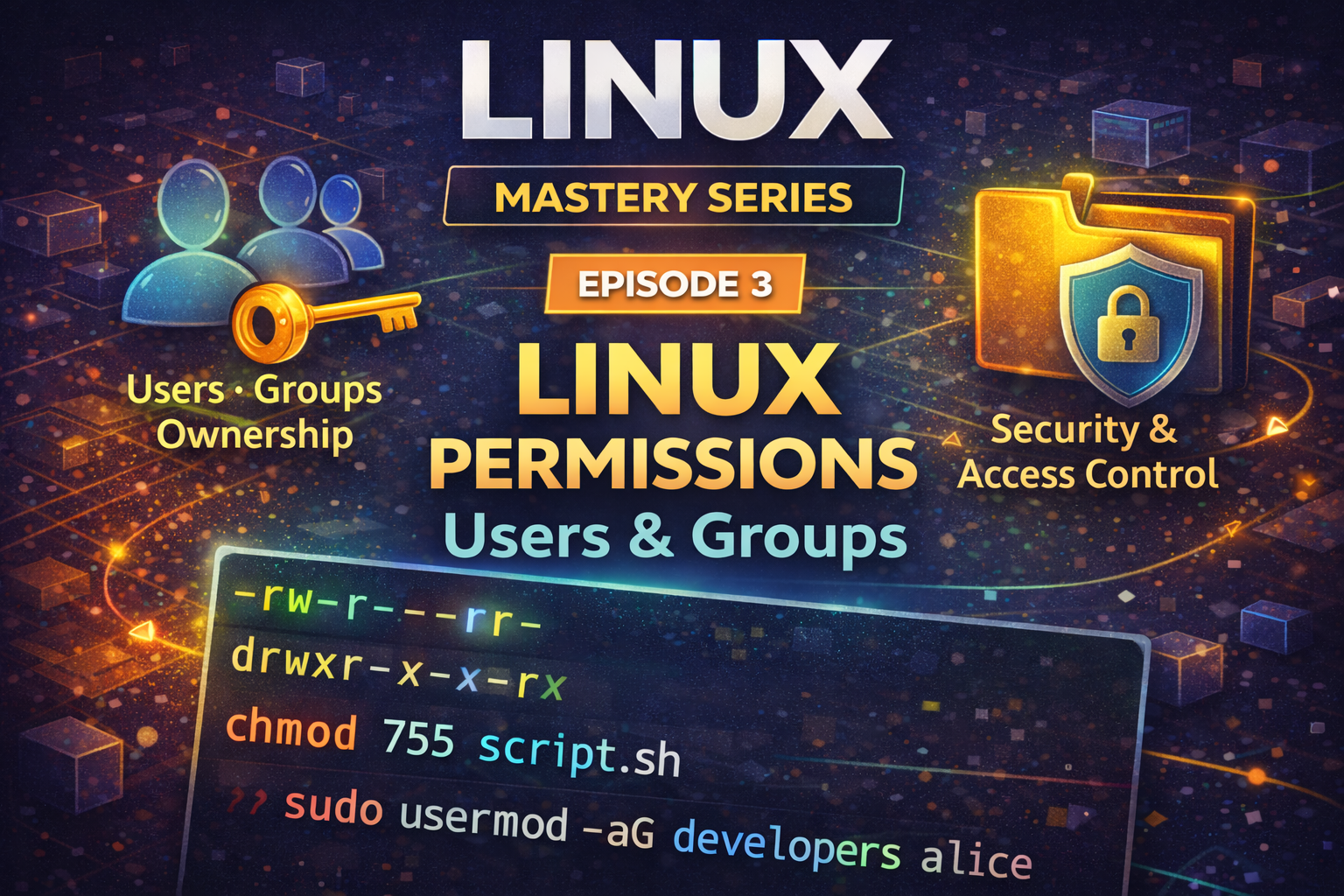
In Episode 1, we learned that Linux is multi-user and multi-tasking. In Episode 2, we explored how the kernel isolates processes using namespaces and cgroups.
Now we're diving into one of Linux's most critical features: permissions and access control. This is where security happens.
Linux permissions determine:
Who can read, write, and execute files
Who can access directories
Who can run privileged commands
How to safely share resources between users
Whether you're managing a production server, deploying applications, or just using Linux, understanding permissions is non-negotiable. Misconfigured permissions are one of the most common security vulnerabilities.
In this episode, we'll master:
Users and groups
File permissions (numeric and human-readable formats)
Ownership and access control
Advanced permissions (setuid, setgid, sticky bit)
sudo and privilege escalation
Security best practices
By the end, you'll understand how to secure your Linux systems and why permissions matter.
The root user (UID 0) is the superuser with unlimited privileges:
Can read, write, and execute any file
Can create and delete users
Can modify system configuration
Can install software
Can access any device
Root is powerful but dangerous. Mistakes as root can destroy the system. This is why the principle of least privilege is important: use root only when necessary.
# Create a new usersudo useradd -m -s /bin/bash alice# Create a user with specific UIDsudo useradd -m -u 1500 -s /bin/bash bob# Create a system user (no home directory, no login)sudo useradd -r -s /usr/sbin/nologin appuser# Set password for usersudo passwd alice# Create user with home directory and shell in one commandsudo adduser alice # Interactive, more user-friendly
# Create a new usersudo useradd -m -s /bin/bash alice# Create a user with specific UIDsudo useradd -m -u 1500 -s /bin/bash bob# Create a system user (no home directory, no login)sudo useradd -r -s /usr/sbin/nologin appuser# Set password for usersudo passwd alice# Create user with home directory and shell in one commandsudo adduser alice # Interactive, more user-friendly
# Create a new groupsudo groupadd developers# Create a group with specific GIDsudo groupadd -g 2000 admins# Create a system groupsudo groupadd -r appgroup
# Create a new groupsudo groupadd developers# Create a group with specific GIDsudo groupadd -g 2000 admins# Create a system groupsudo groupadd -r appgroup
# Add user to a groupsudo usermod -aG developers alice# Add user to multiple groupssudo usermod -aG developers,admins alice# View groups for a usergroups alice# View all members of a groupgetent group developers
# Add user to a groupsudo usermod -aG developers alice# Add user to multiple groupssudo usermod -aG developers,admins alice# View groups for a usergroups alice# View all members of a groupgetent group developers
Important
Use -aG (append to groups) not -G (replace groups). Using -G without -a removes the user from all other groups.
# Delete a user (keep home directory)sudo userdel alice# Delete a user and home directorysudo userdel -r alice# Delete a groupsudo groupdel developers# Remove user from a groupsudo deluser alice developers
# Delete a user (keep home directory)sudo userdel alice# Delete a user and home directorysudo userdel -r alice# Delete a groupsudo groupdel developers# Remove user from a groupsudo gpasswd -d alice developers
# View all userscat /etc/passwd# View all groupscat /etc/group# View user detailsid alice# View current userwhoami# View all logged-in usersw# View user's groupsgroups alice
# View all userscat /etc/passwd# View all groupscat /etc/group# View user detailsid alice# View current userwhoami# View all logged-in usersw# View user's groupsgroups alice
Numeric notation is faster for setting exact permissions:
# Set to 755 (rwxr-xr-x)chmod 755 script.sh# Set to 644 (rw-r--r--)chmod 644 file.txt# Set to 600 (rw-------)chmod 600 secret.txt# Set to 777 (rwxrwxrwx) - NOT RECOMMENDEDchmod 777 file.txt
# Set to 755 (rwxr-xr-x)chmod 755 script.sh# Set to 644 (rw-r--r--)chmod 644 file.txt# Set to 600 (rw-------)chmod 600 secret.txt# Set to 777 (rwxrwxrwx) - NOT RECOMMENDEDchmod 777 file.txt
# Change ownership of all files in a directorysudo chown -R alice:developers /var/www/myapp# Change ownership but preserve symlinkssudo chown -R -h alice:developers /var/www/myapp# Change ownership of files only (not directories)find /var/www/myapp -type f -exec sudo chown alice:developers {} \;
# Change ownership of all files in a directorysudo chown -R alice:developers /var/www/myapp# Change ownership but preserve symlinkssudo chown -R -h alice:developers /var/www/myapp# Change ownership of files only (not directories)find /var/www/myapp -type f -exec sudo chown alice:developers {} \;
When setuid is set on an executable file, the program runs as the file's owner, not the user who executed it.
Numeric representation: 4 (added to the first digit)
plaintext
-rwsr-xr-x  (4755)
  ^
  Setuid bit
Use case: Programs that need elevated privileges
bash
# passwd command runs as root even when executed by regular usersls -l /usr/bin/passwd-rwsr-xr-x 1 root root 68208 Feb 20 10:30 /usr/bin/passwd# Set setuidchmod u+s /usr/bin/myprogramchmod 4755 /usr/bin/myprogram
Security warning: Setuid programs are a common attack vector. Only use when necessary.
When setgid is set on an executable file, the program runs as the file's group. When set on a directory, new files created in that directory inherit the directory's group.
Numeric representation: 2 (added to the first digit)
plaintext
-rwxr-sr-x  (2755)
     ^
     Setgid bit
Use case: Shared directories where files should belong to a specific group
bash
# Create a shared directorymkdir /var/sharedsudo chown root:developers /var/sharedsudo chmod g+s /var/shared# New files created here will belong to 'developers' grouptouch /var/shared/file.txtls -l /var/shared/file.txt-rw-r--r-- 1 alice developers 0 Feb 20 10:30 file.txt
ACLs (Access Control Lists) provide fine-grained permission control beyond the basic owner/group/other model. They allow you to grant specific permissions to specific users or groups.
Use case: When you need to grant permissions to multiple users without creating a group, or when permissions don't fit the standard model.
# Grant read permission to a specific usersetfacl -m u:alice:r file.txt# Grant read and write to a specific usersetfacl -m u:alice:rw file.txt# Grant permissions to a groupsetfacl -m g:developers:rx file.txt# Set default ACL for new files in directorysetfacl -d -m u:alice:rw mydir/# Remove specific ACLsetfacl -x u:alice file.txt# Remove all ACLssetfacl -b file.txt
# Grant read permission to a specific usersetfacl -m u:alice:r file.txt# Grant read and write to a specific usersetfacl -m u:alice:rw file.txt# Grant permissions to a groupsetfacl -m g:developers:rx file.txt# Set default ACL for new files in directorysetfacl -d -m u:alice:rw mydir/# Remove specific ACLsetfacl -x u:alice file.txt# Remove all ACLssetfacl -b file.txt
Scenario 1: Multiple developers need access to a project directory
bash
# Instead of creating a group, use ACLssetfacl -m u:alice:rwx /var/www/projectsetfacl -m u:bob:rwx /var/www/projectsetfacl -m u:charlie:rx /var/www/project # Read-only for charlie
Scenario 2: Shared log directory where different services need access
sudo (superuser do) allows authorized users to run commands as another user (usually root) without knowing the root password. It's the safe way to perform administrative tasks.
Why sudo instead of root login?
Accountability: Logs show which user ran which command
Granular control: Different users can have different sudo permissions
Security: Users don't need to know the root password
The sudoers file (/etc/sudoers) controls who can use sudo and what they can do. Always edit it with visudo, not a regular editor:
# Edit sudoers file (always use visudo)sudo visudo# Add user to sudoers (full sudo access)# Add this line to /etc/sudoers:alice ALL=(ALL) ALL# Allow specific command without password# Add this line:alice ALL=(ALL) NOPASSWD: /usr/bin/systemctl# Allow group to use sudo%developers ALL=(ALL) ALL
# Edit sudoers file (always use visudo)sudo visudo# Add user to sudoers (full sudo access)# Add this line to /etc/sudoers:alice ALL=(ALL) ALL# Allow specific command without password# Add this line:alice ALL=(ALL) NOPASSWD: /usr/bin/systemctl# Allow group to use sudo%developers ALL=(ALL) ALL
Sudoers syntax: user HOST=(runuser) COMMAND
user: Username or group (prefix with % for groups)
# Run command as rootsudo systemctl restart nginx# Run command as specific usersudo -u alice whoami# Run command as root with environment variablessudo -E mycommand# List sudo permissions for current usersudo -l# Edit file as rootsudo nano /etc/nginx/nginx.conf# Run interactive shell as rootsudo -i
# Run command as rootsudo systemctl restart nginx# Run command as specific usersudo -u alice whoami# Run command as root with environment variablessudo -E mycommand# List sudo permissions for current usersudo -l# Edit file as rootsudo nano /etc/nginx/nginx.conf# Run interactive shell as rootsudo -i
Mistake: Creating files with overly permissive default permissions
bash
# Default umask creates world-readable filesumask0022# New files are 644 (rw-r--r--)touch secret.txtls -l secret.txt-rw-r--r-- 1 alice alice 0 Feb 20 10:30 secret.txt
How to avoid it: Set appropriate umask for sensitive operations.
# Create file with restrictive permissionstouch secret.txtchmod 600 secret.txt# Or use umaskumask 0077touch secret.txt # Will be 600# For directoriesmkdir -p secure_dirchmod 700 secure_dir
Understanding permissions is critical for Linux security. Every production incident involving "permission denied" or "permission too open" traces back to these concepts.
Master Angular from the ground up. Learn why Angular was created, understand core concepts like modules, components, services, dependency injection, directives, pipes, forms, HTTP, routing, RxJS, and change detection. Build a complete production-ready todo application covering all Angular fundamentals with best practices.
Master Ansible idempotency to write playbooks that safely run multiple times without side effects. Learn how to build production-grade automation that prevents configuration drift and infrastructure chaos.
Learn how ArgoCD implements GitOps principles to automate Kubernetes deployments. This guide covers core concepts, installation, and real-world patterns for managing applications declaratively.